
General — how 4d itself behaves
The General page of Preferences holds the settings of the
program rather than of a microscope, a computer or a project:
what 4d shows you at startup, how much detail it prints, the font it uses, and
where its Help buttons take you. Unlike the parameter pages, these settings are
stored per user in ~/.4d/preferences.ini and are the same in every
project you open.
The page has three sections. The ? button at the right end of the General title line opens this page.
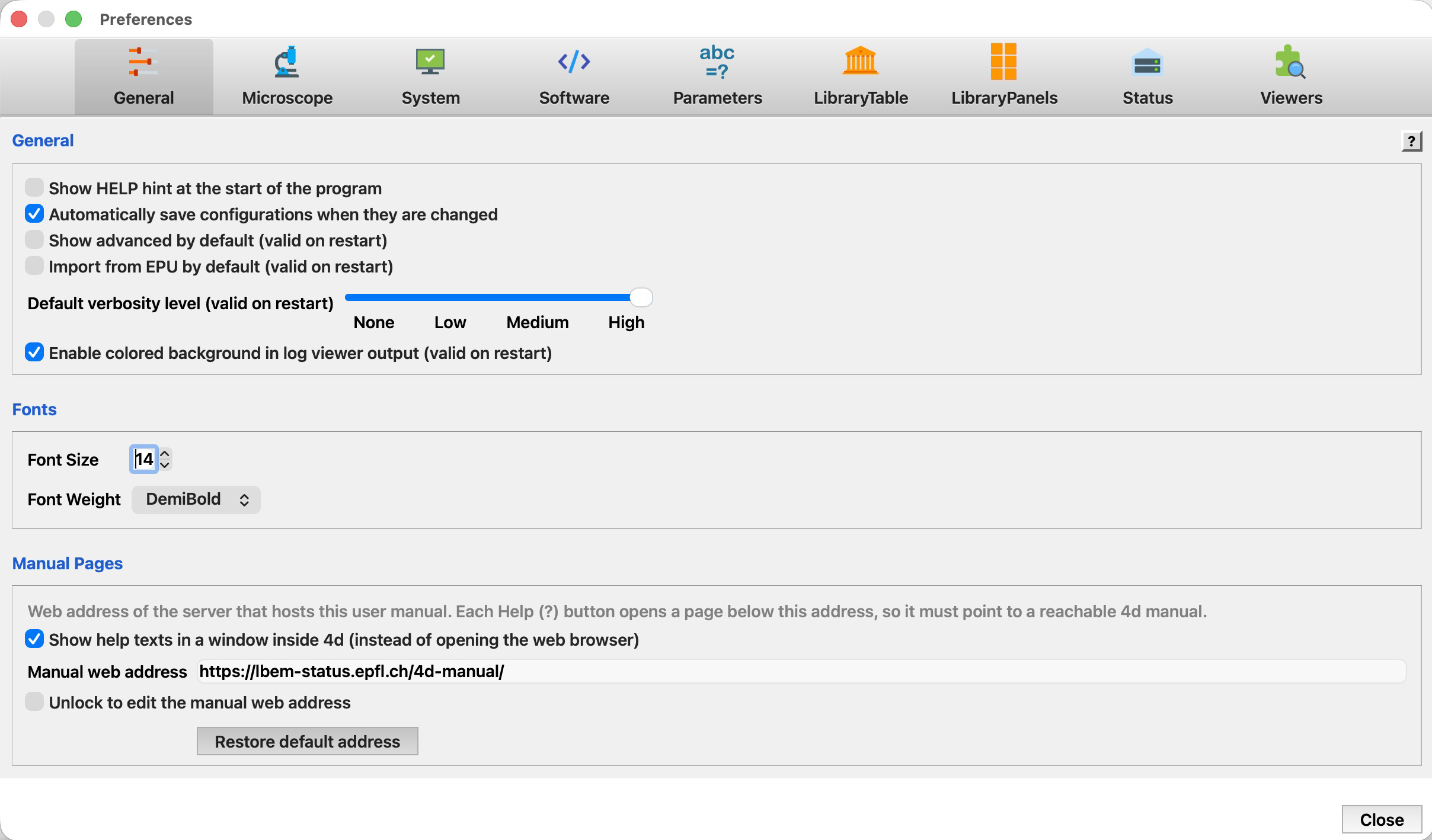
General
The first section collects the switches that decide how much 4d shows and how eagerly it saves.
| Setting | Meaning | Default |
|---|---|---|
| Show HELP hint at the start of the program | Show the reminder pointing at the Help (?) buttons when 4d starts. Turn it off once you know your way around. | on |
| Automatically save configurations when they are changed | Write every parameter change straight to the configuration file. With this off, changes are kept in memory and must be saved explicitly — safer while experimenting, easier to lose. | on |
| Show advanced by default (valid on restart) | Start with the advanced parameters visible in the parameter panels, instead of only the basic ones. | off |
| Import from EPU by default (valid on restart) | Preselect the EPU import mode, for microscopes whose data arrives in Thermo Fisher EPU directory layout. | off |
| Default verbosity level (valid on restart) | How much the processing scripts print into the log: None, Low, Medium or High. Raise it while chasing a failing script, lower it for routine work and shorter logs. | Low |
| Enable colored background in log viewer output (valid on restart) | Colour the background of log lines by severity in the log viewer. Turn it off for a plain black-on-white log. | on |
Fonts
The font 4d uses for its own interface. Both settings apply to the whole application; they do not change the font of the external viewers or of the scripts’ output.
| Setting | Meaning | Range |
|---|---|---|
| Font Size | Point size of the interface font. Useful on very high-resolution screens, where the default can be too small to read comfortably. | 8 – 14 |
| Font Weight | Stroke weight of the interface font: Light, Normal, Medium, DemiBold or Bold. | Normal |
Manual Pages
Every Help (?) button in 4d — including the one that opened this page — leads into this manual. This section decides where it is shown and which copy is used.
| Setting | Meaning | Default |
|---|---|---|
| Show help texts in a window inside 4d (instead of opening the web browser) | With this on, a Help button opens the manual pages installed with 4d in a floating window at the right edge of the screen. Only one such window exists: the next Help button replaces its content, so the manual follows you around without cluttering the desktop. With it off, the page opens in your web browser at the address below. | on, where the build supports it |
| Manual web address | Address of the server hosting this manual. It is used when the option above is off, and as a fallback when a page is missing from the installed manual: the Help button then appends the page name and the anchor within it to this address and opens the result in the browser. With the in-app help window on, the buttons read the installed pages and this address is not consulted. The field is locked, since a wrong address makes every browser-mode Help button fail. | https://lbem-status.epfl.ch/4d-manual/ |
| Unlock to edit the manual web address | Unlocks the field after you confirm a warning. Use it only when your institute hosts its own copy of the manual. Unticking it locks the field again and saves what you typed. | off |
| Restore default address | Puts the built-in address back, undoing any edit. | — |