
Viewers — the programs used to open files
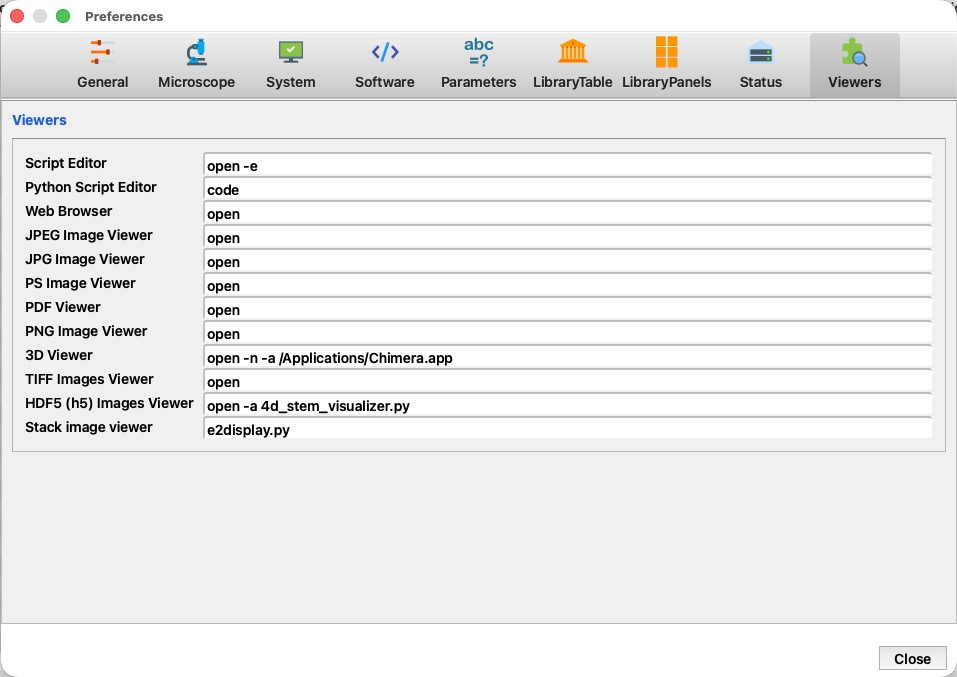
The Viewers page of Preferences sets the external program/command 4d uses to open each kind of file — result images, documents, scripts, and datasets. Whenever you open a file (for example from a processing window's Results / Images panel, or "open in the viewer"), 4d runs the command configured here with the file name appended.
The numbered markers on the screenshot point to each region; the legend explains them, and the table below lists every entry. The ? button at the right end of the Viewers title line opens this page.
 1
2
3
4
5
1
2
3
4
5
| # | Region | What it is and does |
|---|---|---|
| 1 | Preferences tabs | The nine Preferences pages; Viewers is selected here. |
| 2 | Title | The Viewers section title. The ? help button sits at the right end of this line. |
| 3 | Viewer / editor name | The file type or tool a row configures (e.g. Script Editor, PNG Image Viewer, 3D Viewer). |
| 4 | Command | The shell command 4d runs to open that type — the file name is appended to it. Use whatever launches the program on your system. |
| 5 | Close | Close the Preferences dialog. |
The entries
Each row maps a use to a launch command (the file to open is added after the command). Example values, as shipped on macOS:
| Entry | Opens… | Example command |
|---|---|---|
| Script Editor | C-shell (.script/.com) scripts and text files. | open -e |
| Python Script Editor | Python (.py) scripts. | code |
| Web Browser | HTML pages and URLs (also the online manual). | open |
| JPEG / JPG Image Viewer | JPEG images. | open |
| PS Image Viewer | PostScript images. | open |
| PDF Viewer | PDF documents. | open |
| PNG Image Viewer | PNG images (most result previews). | open |
| 3D Viewer | 3D volumes / maps. | open -n -a /Applications/Chimera.app |
| TIFF Images Viewer | TIFF images. | open |
| HDF5 (h5) Images Viewer | 4D-STEM HDF5 datasets. | open -a 4d_stem_visualizer.py |
| Stack image viewer | MRC image stacks. | e2display.py |
Use commands appropriate to your platform. On macOS,
open uses the
default app for the file type, open -a <App> or
open -a <script> forces a specific one, and open -e
opens in TextEdit; on Linux, use the program's executable name (e.g.
xdg-open, code, eog) instead. A direct
executable or script name (e.g. e2display.py) is run with the file
as its argument.