
The Parameter Editor
The Parameters tab of the Preferences dialog opens the
Parameter Editor — the master list of every parameter 4d knows
about. Each parameter has a name used in the processing scripts (via their
# DISPLAY: lines) and a set of properties (label, default value,
type, help, and where it is shown). The scripts and the per-dataset/project
configuration all draw their labels, types and defaults from here. Parameters are
grouped into tabs, one per parameter file (Sample, 4D STEM, Parallax, …).
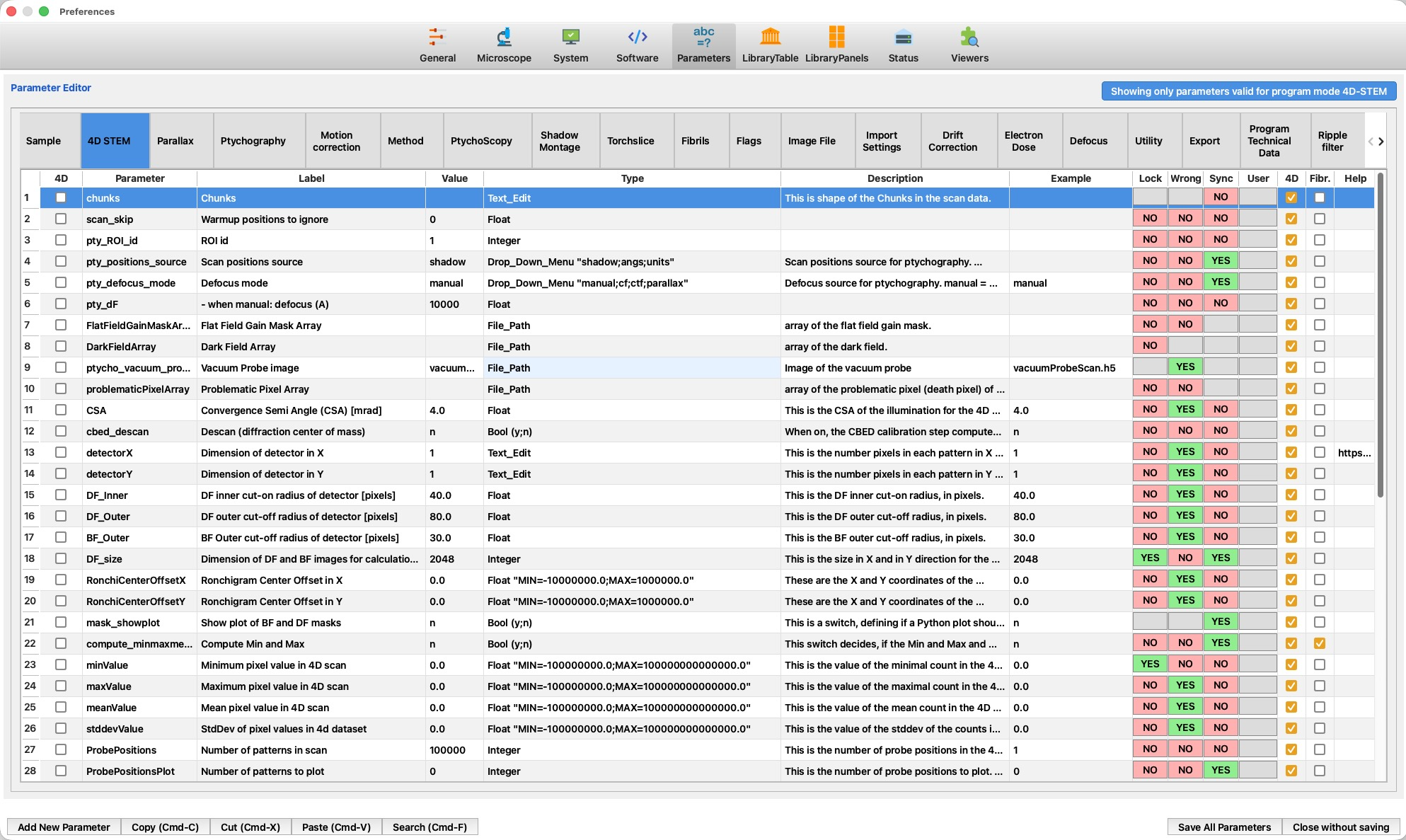
The numbered markers on the screenshot point to each region; the legend and the sections below explain them. The ? button at the top-right of the Parameter Editor (just to the right of the mode-filter toggle) opens this page.
 1
2
3
4
5
6
7
8
9
10
11
12
13
14
15
1
2
3
4
5
6
7
8
9
10
11
12
13
14
15
| # | Region / column | What it is and does |
|---|---|---|
| 1 | Preferences tabs | The nine Preferences pages; Parameters is selected here. |
| 2 | Parameter Editor title | The panel title. |
| 3 | Mode-filter toggle | "Showing only parameters valid for program mode …" — toggles between showing only the parameters used in the current program mode and showing all parameters. The ? help button sits just to its right. |
| 4 | Section tabs | One tab per parameter file / group (Sample, 4D STEM, Parallax, Ptychography, Motion correction, …). Use the ‹ › arrows to reach tabs that don't fit. Editing a tab writes back to its own .cfg file. A file that declares several # SECTION: blocks shows one table per section in its tab, each under its own title line, and all of them are saved back into that one file — see Files with several sections. |
| 5 | Row # & "4D" show-in-table box | The row number, and a check-box that makes the parameter appear as a column in the Library table for the current program mode. |
| 6 | Parameter | The parameter's internal name, exactly as scripts reference it in their # DISPLAY: lines. Must be unique (see below). |
| 7 | Label | The human-readable text shown for this parameter in the Manual Processing parameter form. |
| 8 | Value | The parameter's default value. |
| 9 | Type | The parameter's data type — see Parameter types. |
| 10 | Description | The explanatory text (legend), shown to the user as the parameter's tooltip/help. |
| 11 | Example | An example value, to show the expected format. |
| 12 | Lock / Wrong / Sync | Three YES/NO flags controlling initial lock state, the "still needs editing" mark, and project-wide syncing — see Lock, Wrong & Sync. |
| 13 | User & program mode (4D / Fibr.) | The User level (Normal vs. Advanced — advanced parameters are hidden until "Show advanced" is on), and the 4D / Fibr. check-boxes that say which program mode(s) the parameter belongs to. |
| 14 | Help | An optional link to a help page for the parameter. |
| 15 | Action buttons | Add New Parameter Section (see Parameter sections), Add New Parameter, Copy / Cut / Paste (⌘C/⌘X/⌘V), and Search (⌘F) at the bottom-left; Save All Parameters and Close without saving at the bottom-right. |
Parameter sections
Every parameter file starts with a # SECTION: line that names the
group of parameters below it. A file may declare more than one
# SECTION:; its tab then shows one table per section, each under its
own title line, in the order in which the sections appear in the file. The tab is
named after whichever section comes first.
Each title line carries two controls:
- ≡ — press it and drag up or down to move that section to another place within its file. Moving a section to the top renames the tab after it.
- pen — click it to give the section a new name.
Add New Parameter Section (bottom left, next to Add New
Parameter) appends a further section, called Parameter Section, to
the end of the tab you are in; rename it with the pen and fill it with
Add New Parameter. The new section starts with one placeholder
parameter, dummy of type Text_Edit — rename it through
the Edit Parameter dialog (double-click its row) or delete it once the
section holds the parameters you want.
A section lives through its parameters: deleting or cutting the last parameter of a section removes the section as well, and it is no longer written to the file. The last remaining section of a file is kept even when it runs empty, so that the file itself is not lost.
Editing works the same in every table, and Save All Parameters
writes all sections of a tab back into that one file, keeping its
# SECTION: blocks in the order shown. When the mode filter is on, a
section without a single parameter for the current program mode is left out of the
tab, and a tab without any is dropped from the tab bar.
Parameter types
The Type column (9) fixes how a parameter is entered and validated. The available types are:
| Type | Meaning |
|---|---|
Text_Edit | Free text — any string. |
Bool (y;n) | A yes/no switch, stored as y or n. |
Integer | A whole number. |
Float | A decimal number. A range can be attached, written as Float "MIN=…;MAX=…". |
Two_Float | A pair of decimal numbers (e.g. 16,100). |
Three_Float | Three decimal numbers. |
Four_Float | Four decimal numbers. |
Drop_Down_Menu | A choice from a fixed list, written as Drop_Down_Menu "a;b;c" — the GUI shows a drop-down of those options. |
File_Path | A path to a file (with a file browser). |
Dir_Path | A path to a directory. |
Dir_Path_No_Subdir | A directory path, restricted to a directory without browsing into sub-directories. |
File_Path_System_Wide | A file path resolved against system-wide locations. |
File_Path_Project_Wide | A file path resolved against the project. |
File_Path_Local_Image | A file path local to the current image/dataset. |
Lock, Wrong & Sync
These three YES/NO columns (12) are per-parameter flags:
| Flag | YES means… |
|---|---|
| Lock | The parameter starts locked in the processing GUI — a small lock icon is shown, and the user must unlock it before editing. Use it to protect values that should rarely change. |
| Wrong | The parameter is flagged as still requiring editing — it is marked as "wrong / not yet set" so the user's attention is drawn to it before a script is run. |
| Sync (sync with upper level) | The parameter is global / project-wide: its value is shared across all datasets (synchronised with the project level) instead of being stored separately per dataset. Changing it in one place changes it everywhere. |
Parameter names must be unique
A parameter name (column 6) may appear only once across the whole Parameter Editor — the name is the key that scripts use, so two definitions would be ambiguous. If the same name is entered twice (in the same tab or in different tabs), every row with that name is highlighted in orange to flag the clash. An orange row means you must rename or remove one of the duplicates before saving. The Edit Parameter dialog also turns the name field orange and warns "Parameter exists already in tab '…'" as you type a name that is already in use.