
← Back to “Main window & navigation”
The Project window — manage the whole project
Opened from the Project button on the navigation toolbar, this window is where you manage project-wide settings and perform maintenance that affects the project as a whole rather than a single dataset. It has two parts: a header bar across the top (project identity, project-level actions, and dataset-maintenance actions) and a set of tabs below it (parameter search, parameter synchronisation, and project utility scripts). The ? button at the right end of the header opens this manual page.
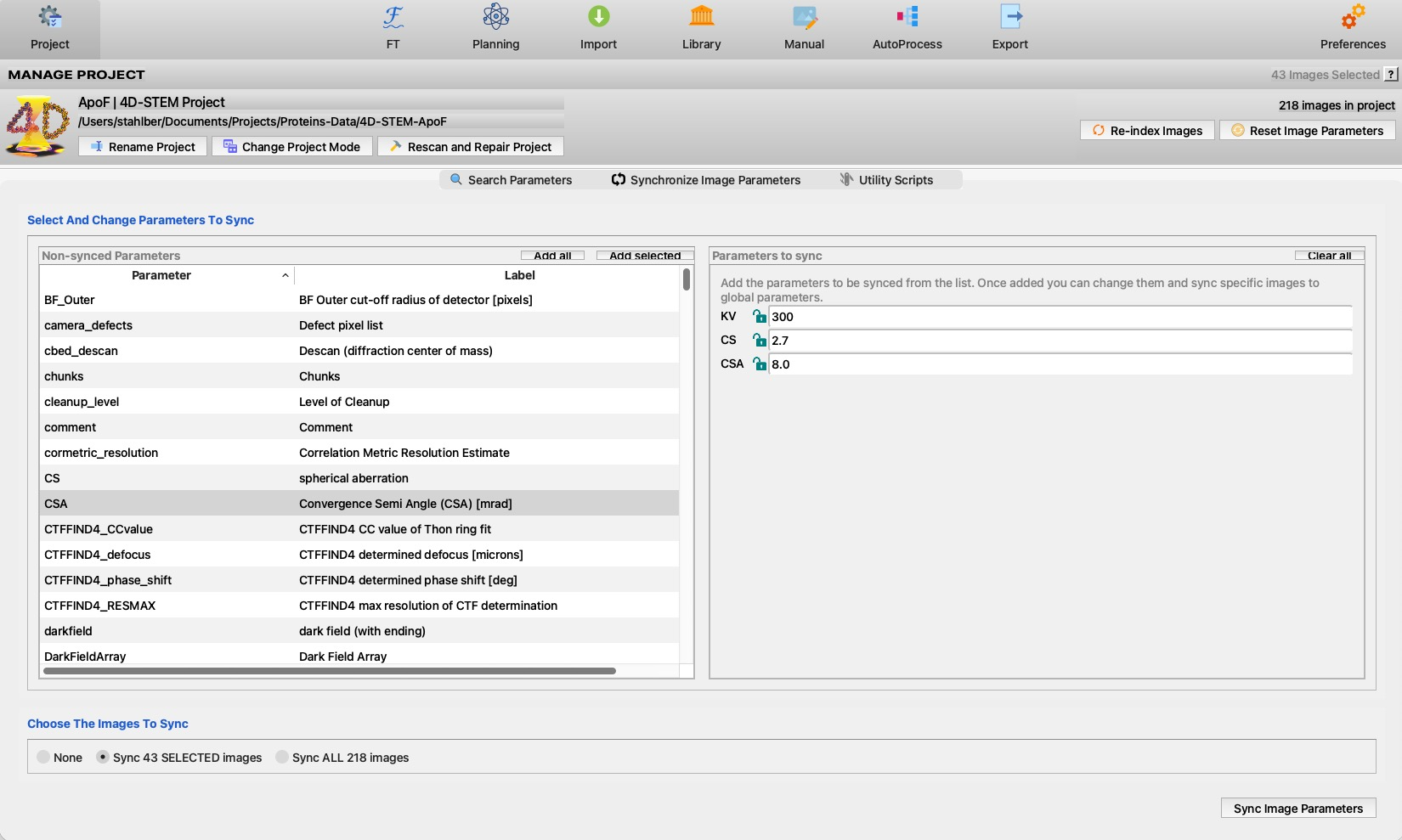
The numbered markers on the screenshot point to each region; the legend and the sections below explain them. The Synchronize Image Parameters tab is the one open in this example.
 1
2
3
4
5
6
7
8
9
10
1
2
3
4
5
6
7
8
9
10
| # | Region | What it is and does |
|---|---|---|
| 1 | Navigation toolbar | The main 4d toolbar; the Project button opens this window. |
| 2 | Selection count & help | How many datasets are currently selected in the Library (they are the targets of the dataset-maintenance actions), and the ? button that opens this page. |
| 3 | Project identity | The mode icon, the project name and mode, and the project directory path. |
| 4 | Project actions | Rename Project, Change Project Mode, Rescan and Repair Project — see Project actions. |
| 5 | Dataset maintenance | The live “N images in project” count, with Re-index Images and Reset Image Parameters — see Dataset maintenance. |
| 6 | Tabs | Search Parameters, Synchronize Image Parameters (open here), and Utility Scripts. |
| 7 | Non-synced parameters | All parameters not yet chosen for syncing, with their labels. Add all or Add selected moves them to the sync list on the right. |
| 8 | Parameters to sync | The parameters that will be pushed (here KV, CS and CSA), each with the value it should take; Clear all empties the list. |
| 9 | Choose the images to sync | None, the datasets currently selected in the Library, or all datasets in the project. |
| 10 | Sync Image Parameters | Writes the chosen values into the chosen datasets — see Synchronize Image Parameters. |
merge/
folder and act as the defaults that new datasets inherit. Actions that touch
existing datasets (Reset Image Parameters, Synchronize Image
Parameters) apply to the datasets you selected in the
Library.
Header bar
The header shows the project mode icon, the project name and mode (as “Name | Mode Project”), the project directory path, and a live “N images in project” count. It carries two groups of buttons.
Project actions — rename, change mode, rescan & repair
Buttons
| Button | What it does |
|---|---|
| Rename Project | Prompts for a new project name and applies it. Cosmetic — it does not move the project on disk. |
| Change Project Mode | Switches the project to another project mode. Because a different mode uses a different parameter set, some processed parameters not present in the new mode may be dropped, and 4d restarts to apply the change. You are asked to confirm first. |
| Rescan and Repair Project | Rediscovers all dataset folders on disk and makes the project consistent: it upgrades any legacy 2dx_image.cfg files to 4d_image.cfg, then re-indexes. Use it if datasets were added, moved, or copied outside 4d, or a project was carried over from the old 2dx software. |
Dataset maintenance — re-index & reset parameters
On the right of the header, next to the dataset count:
| Button | What it does |
|---|---|
| Re-index Images | Rescans the project folder tree and rebuilds the in-memory list of dataset groups and datasets from what is actually on disk. If the SQL database is present but empty it also migrates parameters from any .cfg files into it, and it discovers datasets that were imported into sub-directories of a group (see the Import tab's “Also import sub-directories” option). Run it whenever the folder contents changed underneath the app. |
| Reset Image Parameters | For the datasets currently selected in the Library, backs up each dataset's parameters and then resets them to the project defaults (a small set of “unique” parameters such as the image number is preserved). This discards processed results for those datasets, so it asks you to confirm. If it was a mistake, the previous values can be recovered with the Backup / Restore Databases utility script. |
Tabs
Search Parameters — view & edit project or dataset parameters
Purpose
A parameter editor for the whole project. The scope list on the right (“Select the scope of parameters”) chooses what you are editing: Project Parameters (the project-wide defaults) or any individual dataset. The Search Parameters box at the top filters the displayed parameters by name, so you can jump straight to the setting you want.
How to use
- Pick Project Parameters (default) to edit the shared defaults, or a dataset to edit just that dataset.
- Type into Search Parameters and press Enter to narrow the list to matching names.
- Edit values inline. Project-scope edits become the defaults inherited by new datasets; dataset-scope edits affect only that dataset.
Newly imported datasets appear in the scope list automatically.
Synchronize Image Parameters — push values to many datasets
Purpose
Applies chosen parameter values to a chosen set of datasets in one step — the tool for making a group of datasets consistent (for example, giving them all the same detector geometry or scan settings).
How to use
- Under Select and change parameters to sync, choose the parameters you want to push and set the value each should take.
- Under Choose the images to sync, pick which datasets receive them.
- Click Sync Image Parameters to write those values into the selected datasets.
Utility Scripts — project-level maintenance scripts
Purpose
A standard 4d script view (the same “pick a script, edit its parameters,
run it, watch its output” surface used elsewhere) listing the
project-level utility scripts — the ones found in the
project script folder. Typical entries include database
backup/restore and other project-wide maintenance tasks. Scripts run and report
exactly like the processing scripts documented under
Utilities.